User Guide
LoopLab for Chrome
Once your brain knows the pattern, you can hear it.
Step 1
Set up
- Add LoopLab to Chrome and pin its icon in the toolbar (the icon shows or hides the panel).
- Open the YouTube video you want to practice with and turn on subtitles (CC) in the language you are learning.
- The LoopLab panel appears on the right and loads the subtitles. If the list stays empty, wait a moment, then click Load Subtitles.
- The video starts paused (after a reload, at the spot where you left off). Press Play when you are ready.
- Netflix: turn LoopLab on once; see Start on Netflix.
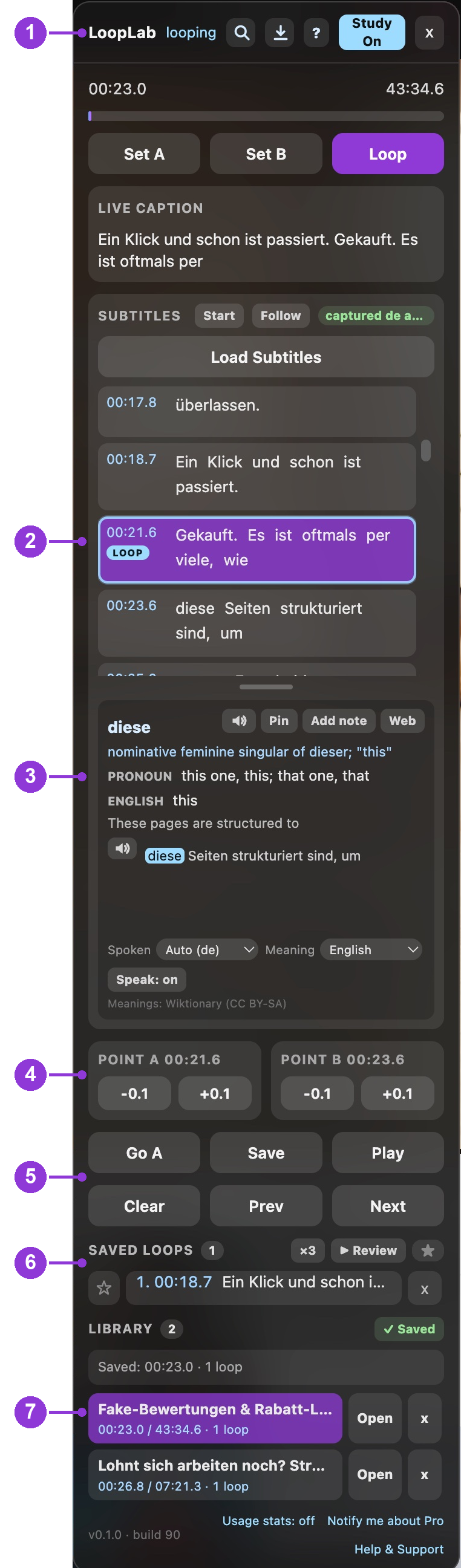
The panel at a glance
- 1Header: Search, Export, Help (?), Study On/Off, close
- 2Subtitle list: the violet row is playing now; LOOP marks the looping row; Text: Full / Hint / Masked
- 3Word card: meaning, pronunciation tips, translation, read-aloud
- 4Point A / Point B: Set A, Set B, Loop, Gap; fine-tune the loop start and end by 0.1 s
- 5Loop buttons: Go A, Save, Play, Clear, Prev, Next
- 6Saved loops: your kept loops, favorites, and Review
- 7Library: your study videos; resume where you left off
Step 2
Play and pause
- Press Space (YouTube's own key) or click Play in the panel. The same button reads Pause while the video plays.
- LoopLab's keys work while Study is On (panel header) and you are not typing in a text box.
Step 3
Loop one row
- Keyboard: press , (comma) to loop the row that is playing right now, the violet row. Press , again to release it.
- Mouse: click a row's time stamp (or the empty space around it) to loop that row. Click it again to release.
- The looping row gets a LOOP badge (number 2 in the picture above). . restarts it from the beginning; ← / → jump to the previous / next row, and while a row is looping the loop moves with you, so you can work through a scene line by line.
- To release any loop: Shift+Z (or Shift+Space), or the Clear button.
Step 4
Loop several rows in a row
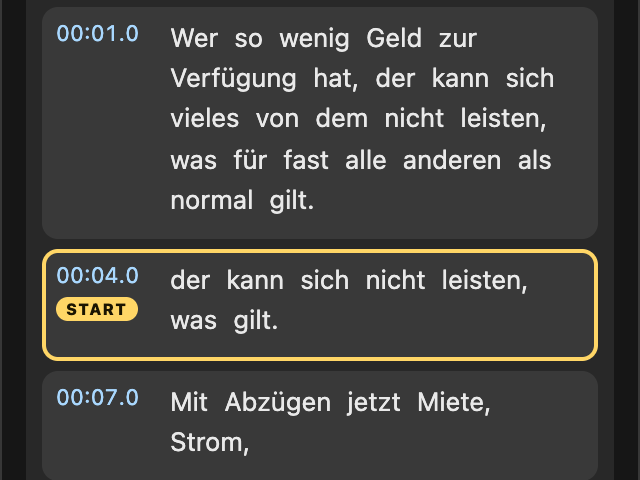
- Shift+click the first row's time stamp. The video pauses and the row is marked START, so the list holds still.
- Scroll to the last row you want (the list stays where you put it).
- Shift+click the last row's time stamp. Everything from the first to the last row loops, and playback starts again.
Shift+click START again to cancel. Shift+Z releases the loop.
Step 5
Loop a phrase (any length)
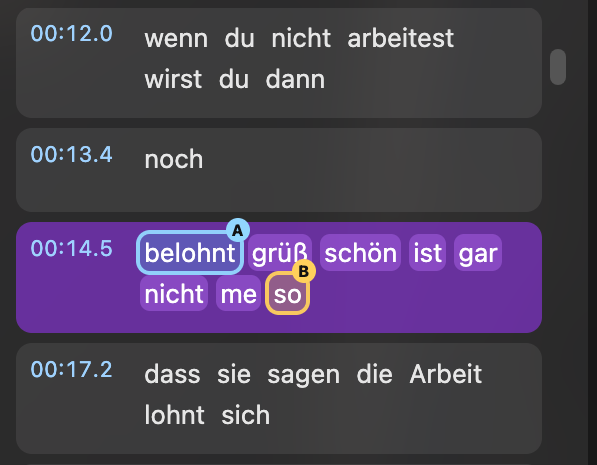
Option 1: click words. Click the word where the loop should start, then a later word where it should end. Click another word to move the nearest end; it can be in another row.
Option 2: A/B points. Click Set A (or Shift+A) at the start and Set B (or Shift+B) at the end. The loop starts at once; Loop turns it off and on. B alone stops playback there.
Step 6
Fine-tune a loop
- Use −0.1 / +0.1 under POINT A (loop start) and POINT B (loop end), number 4 in the panel picture.
- Handy when a word loop starts a little early or ends a little late: nudge until it sounds clean.
- A always stays at least 0.2 s before B; a red note explains when a step is not possible.
Step 7
Practise listening
- The Text button in the Subtitles header (or Shift+H) switches the subtitle text between Full, Hint (first letter of each word: W•• s• w••••), and Masked (only dots). Word lengths and punctuation stay, so you can still click start and end words for a phrase loop.
- Press ↓ (or the 👁 on the looping row) to check the text of the row you are on. It hides again when you move on: when the loop moves to another row, or in normal playback when the next row starts.
- While you practise, YouTube's own captions on the video are hidden too, so nothing gives the answer away.
- A routine that works: Masked → , to loop a row → listen until you can say it → ↓ to check → → to the next row.
Step 8
Gap: your turn to speak
- The Gap button (next to Loop) or Shift+G adds a pause after every pass of a loop: 0.5 s, 1 s, 2 s, 3 s, or Auto (1.5× the loop's length). Click Gap to pick from the menu (Shift+G cycles); Off turns it off.
- During the pause the button counts down Your turn 3… 2… 1: say the line back (shadowing), then the loop plays again.
- Space or Play continues at once; ← / → go on with the previous / next row. Works with row, phrase, and A/B loops, and between the passes of Review. LoopLab remembers your choice.
Step 9
Word meanings and read-aloud
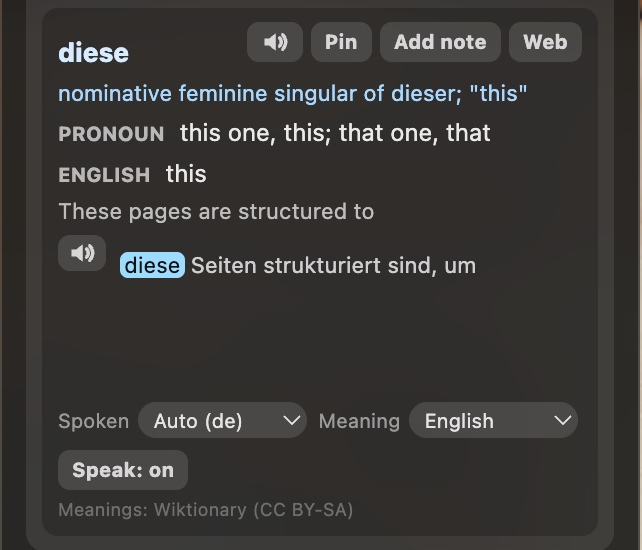
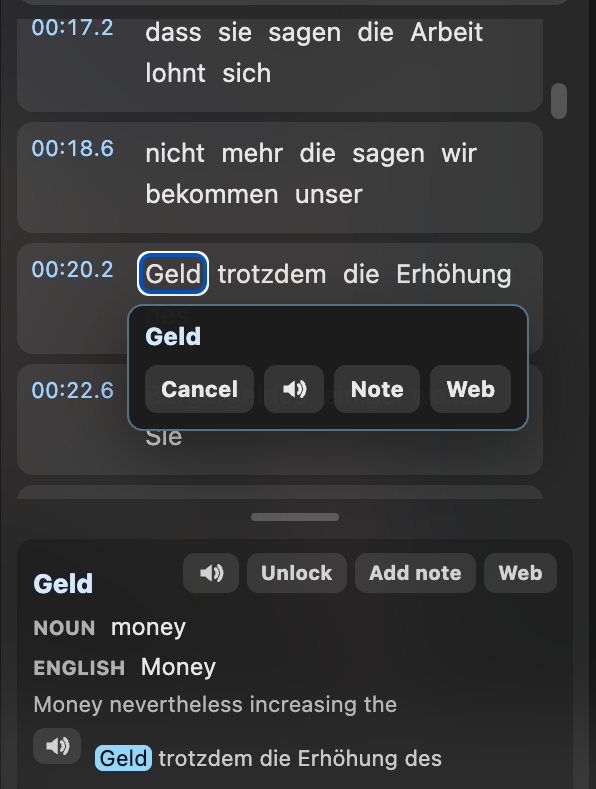
- Hover any word in the subtitle list to see it in the word card: meaning (Wiktionary, including base forms such as Abzügen → Abzug), part of speech, translation of the word and the line, and hearing tips for frequent German words. Long entries scroll inside the card.
- Shift+click a word to pause, hear it read aloud, and open the word menu (closing the menu with Cancel or Esc continues playback):
- Cancel closes the menu
- 🔈 reads the word again (press twice for slow)
- Note adds your own note to the word
- Web opens the Collins dictionary entry in a new tab
- In the word card: 🔈 next to the line reads the whole line slowly, Pin keeps the word while you move the mouse, Speak: on/off turns the Shift+click readout off. Spoken and Meaning choose the video's language and the language of translations.
Step 10
Save, review, and your library
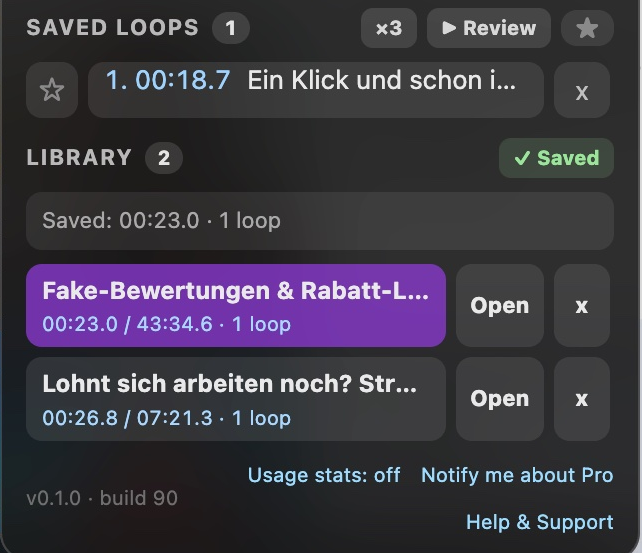
- While a loop is active, click Save. It appears under SAVED LOOPS with its subtitle text; click ☆ to make it a favorite, × to delete it. The video is added to your Library.
- Prev / Next step through the saved loops.
- Review plays your saved loops one after another, ×N each (click ×3 to choose 1 / 2 / 3 / 5). The ★ button limits it to favorites.
- LIBRARY lists your study videos with their position and number of loops. Click a title to resume where you left off, Open to start from the beginning, ☆ to star a video (starred videos come first). + Save Video adds the current video.
Step 11
Search
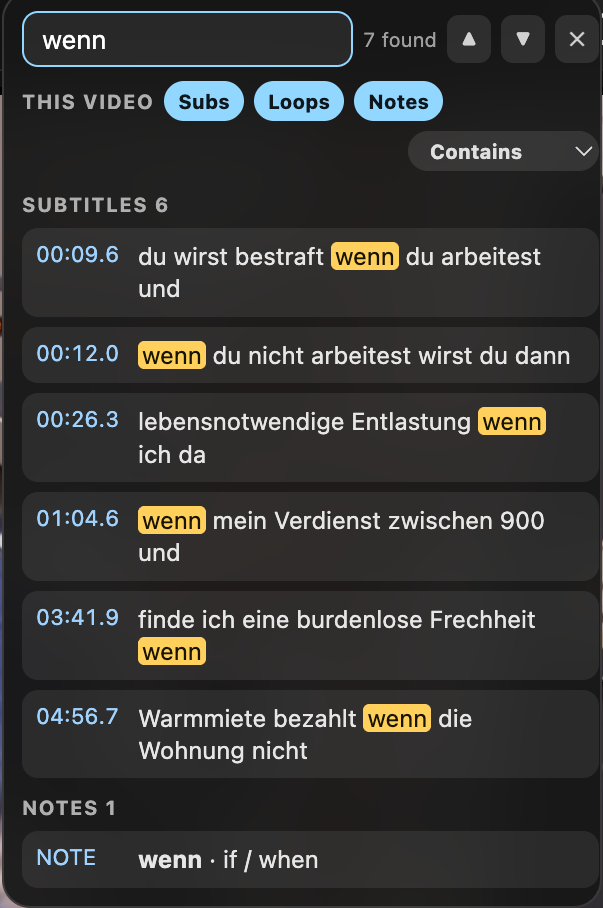
- Click the magnifier in the panel header. Search this video's subtitles, your saved loops, and your notes (choose with Subs / Loops / Notes).
- Click a result to loop that line or saved loop.
- Enter / Shift+Enter step through the results, Esc closes.
Step 12
Export and backup
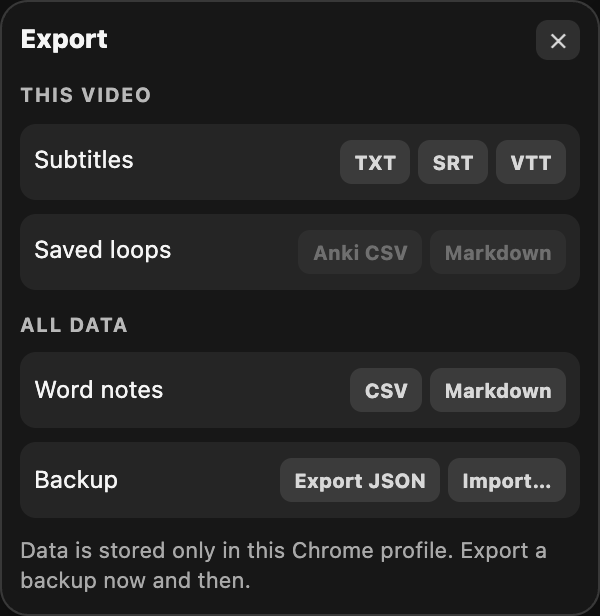
Click the download icon in the panel header:
- This video: subtitles (TXT, SRT, VTT), saved loops (Anki CSV, Markdown).
- All data: word notes (CSV, Markdown), and a full backup (Export JSON / Import).
Your loops, notes, and library live only in this Chrome profile. Export a backup now and then.
Step 13
Help and panel layout
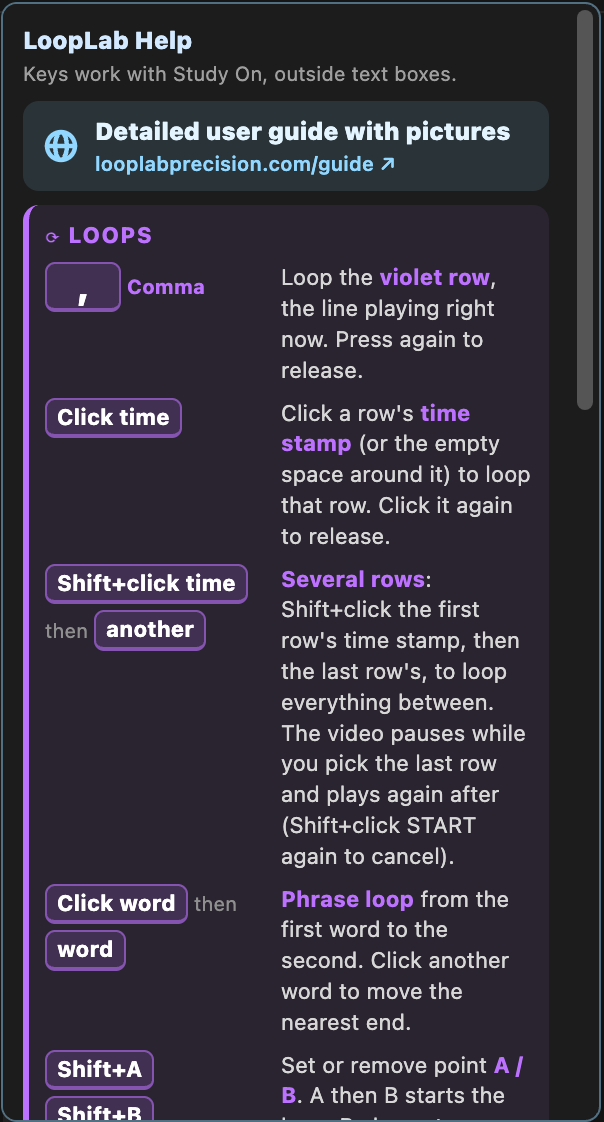
- Click ? in the panel header for the built-in key reference, with a link to this guide.
- Divider: drag the bar between the subtitle list and the word card. Down gives more rows and a smaller word card (at the bottom the card closes to a "▴ Word card" bar; click it to bring the card back). Up does the opposite. Double-click resets.
- Small screens: the panel never gets taller than the window; scroll inside the panel to reach Saved loops and Library.
- Scroll back: scroll the subtitle list to earlier rows while the video plays; it stays where you put it. Follow jumps back to the playing row.
- Move the panel by dragging its header. Close it with x; the LoopLab toolbar icon brings it back.
- Usage stats (panel footer) is off unless you agree to share anonymous feature-usage counts. Privacy policy.
Step 14
All keys
- , (comma)
- Loop the violet row (the line playing now); press again to release
- . (period)
- Restart the violet row from its beginning
- ← / →
- Previous / next row; while a row is looping, the loop moves with you (YouTube's normal 5 s seek when no subtitles are loaded)
- Shift+H
- Subtitle text: Full → Hint → Masked (listening practice)
- ↓
- Show / hide the text of the row you are on (in Hint / Masked)
- Shift+G
- Gap after each loop pass: off, 0.5 s, 1 s, 2 s, 3 s, Auto (or click Gap)
- Alt+← / Alt+→
- Move the violet row up / down in the list; playback continues
- Shift+A / Shift+B
- Set or remove point A / B; A then B starts the loop, B alone stops there
- Shift+Z or Shift+Space
- Clear the loop
- Shift+click a time stamp
- Mark the first row of a multi-row loop, then the last row
- Shift+click a word
- Pause, read the word aloud, open the word menu
- Two-finger swipe over the panel
- Previous / next row
- Search: Enter / Shift+Enter / Esc
- Next / previous result, close
Keys work while Study is On, outside text boxes.
Troubleshooting
Space or Shift+Space does nothing, and the page scrolls instead
Another extension's box has the keyboard, so neither YouTube nor LoopLab receives your keys. A common one is Vimium: the backtick key (`) opens its "Go to mark…" box at the bottom of the window. LoopLab shows a yellow note in the panel when this happens.
Try: press Esc, or click the video. If it happens often, exclude youtube.com in that extension's options. Keys also don't work while you type in a text box (search, notes) or when Study is Off.
Keys or buttons behave strangely right after LoopLab updated
YouTube tabs that were open during the update keep the old version. Reload the YouTube tab. The panel footer shows the build number (e.g. "build 112").
The subtitle rows are late, or in CAPITAL LETTERS
Some news channels offer TV broadcast captions ("English - CC1", "DTVCC1"). They are typed live and run seconds behind the voice. LoopLab prefers the auto-generated track, which is timed to the audio.
Try: pick another track in YouTube's ⚙ → Subtitles/CC menu: LoopLab follows your choice within a few seconds. Load Subtitles reloads the rows.
"Subtitles did not load" or no subtitle rows
Turn on CC in the YouTube player, then click Load Subtitles. Some videos have no subtitles at all; LoopLab needs at least YouTube's auto-generated ones.
Something on YouTube looks or acts different with other extensions on
Other YouTube extensions (subtitle tools, ad blockers, keyboard tools) can change the page or catch keys. To check, turn them off in chrome://extensions, reload the tab, and try again; then turn them back on one by one.
Still stuck?
Contact support with the video link, what you pressed, and the build number from the panel footer. A screenshot helps a lot.
Questions or ideas? Contact support.